A laptop marked down by $300 is not automatically a great deal. One version may have more memory, a faster processor, or twice the storage than another model with a nearly identical name. Knowing how to compare laptop specs helps you spend on the features you will actually feel every day, not a long list of numbers that look impressive on a product page.
The smartest comparison starts with your routine. A student carrying a laptop across campus has different priorities than a parent managing photos and bills, a remote worker juggling browser tabs, or a gamer chasing smoother frame rates. Once you know the job, the specs become much easier to sort.
Start with what you need the laptop to do
Before comparing processors or screen resolutions, put the laptop into one of these real-world groups: everyday use, school and office work, creative work, or gaming. This keeps a bargain from becoming an expensive compromise.
For browsing, streaming, email, video calls, documents, and online banking, an entry-level or mid-range laptop can be a good buy if it has enough RAM and a solid-state drive. For school and work, aim for a machine that can handle many tabs, video meetings, spreadsheets, and apps at the same time. Creative tasks such as photo editing, design, music production, and video work need more memory, faster storage, and sometimes dedicated graphics. Gaming requires the closest attention to the graphics card, display refresh rate, cooling, and power.
A simple rule helps: buy for the most demanding task you do regularly, not the easiest one. If you edit video once a year, you may not need a creator-class laptop. If you work with large spreadsheets every week, however, a low-cost configuration may quickly feel slow.
How to compare laptop specs that affect speed
Processor: look at the series, not just the brand
The CPU, or processor, is the laptop’s main problem-solver. Intel Core and AMD Ryzen chips are common in Windows laptops, while Apple laptops use Apple silicon. Within each family, the exact series matters more than the logo on the lid.
For basic use, recent Intel Core i3, Core 3, AMD Ryzen 3, or efficient entry-level chips can be enough. Mid-range Intel Core i5, Core 5, AMD Ryzen 5, and similar processors are often the sweet spot for school, office work, and busy households. Intel Core i7, Core 7, AMD Ryzen 7, and higher-end chips make more sense for demanding multitasking, creative apps, programming, and gaming systems.
Do not compare processors by GHz alone. A newer chip at a lower clock speed can outperform an older one. Check the full processor name and generation where available, then compare laptops released in a similar time frame. Also watch for low-power chips in thin laptops. They can offer excellent battery life but may take longer with heavy exports, large files, or demanding games.
RAM: the spec that keeps multitasking comfortable
RAM is temporary working space. When it runs short, a laptop slows down as it swaps data to storage. For most shoppers, 8GB is the practical minimum for light daily use. It can work well for documents, streaming, and a modest number of browser tabs.
For a laptop you want to keep for several years, 16GB is usually the better-value choice. It gives web browsing, video calls, school apps, and office programs more breathing room. Creators, developers, and serious gamers may benefit from 32GB, especially when working with large media files or running several demanding applications at once.
Check whether memory can be upgraded later. Many slim laptops have RAM soldered to the board, meaning the configuration you buy is the one you keep. If the price difference is reasonable, choosing 16GB up front can prevent regret later.
Storage: choose an SSD and check the capacity
Storage holds your files, apps, photos, and games. A solid-state drive, usually listed as SSD or NVMe SSD, is far faster than an older hard drive and makes a noticeable difference in startup times and everyday responsiveness.
A 256GB SSD can suit light users who store files in the cloud, but it fills up surprisingly fast with photos, downloaded shows, software, and updates. A 512GB SSD is a comfortable target for many Canadian households, students, and professionals. Gamers and creators should consider 1TB or more, since modern games and video projects can consume a huge amount of space.
Do not let a large hard-drive number distract from a small SSD. A laptop with a 1TB hard drive may offer more capacity, but it will often feel slower than one with a 512GB SSD.
Screen, graphics, and portability: compare what you will see and carry
A display is not just a size measurement. A 13- or 14-inch laptop is easier to carry and often has better battery life. A 15- or 16-inch screen provides more room for spreadsheets, split-screen work, and entertainment. A 17-inch model can be useful as a desktop replacement but is less convenient in a backpack.
For resolution, Full HD, also called 1080p or 1920 x 1080, remains a reliable choice. It is sharp enough for most tasks without putting too much strain on battery life or graphics performance. Higher-resolution screens look excellent, especially for photo work, but they can add cost and reduce battery life.
Graphics are another place where product pages can confuse shoppers. Integrated graphics share system resources and are perfectly capable for web use, school, office tasks, streaming, and casual games. Dedicated graphics from NVIDIA or AMD are worthwhile for newer games, 3D design, CAD work, and GPU-accelerated creative software.
Gamers should look beyond the words “gaming laptop.” Compare the exact GPU model, the amount of video memory, display refresh rate, and screen resolution. A powerful graphics card paired with a high-resolution display may not deliver the frame rates you expect. For competitive gaming, a 120Hz or 144Hz display can feel noticeably smoother than a standard 60Hz panel, provided the laptop can produce enough frames.
Check battery life, ports, and the details that cause daily annoyance
Manufacturer battery estimates are useful for comparison, but they are best-case figures. Streaming, gaming, high screen brightness, and video calls drain power more quickly. A thin, efficient laptop may last longer than a more powerful gaming model, even if both have similar battery ratings.
Ports matter more than they seem. Check for the connections you use now: USB-A for older accessories, USB-C for newer gear and charging, HDMI for a monitor or TV, a headphone jack, and an SD card reader if you use a camera. If a laptop has only USB-C ports, factor in the cost of an adapter or dock before calling it the best deal.
Also read the fine print on Wi-Fi version, webcam quality, keyboard backlighting, fingerprint login, weight, warranty, and charger size. These features may not make a laptop faster, but they can make it much nicer to live with.
Compare configurations, not model names
The same laptop name can be sold with several processors, RAM amounts, storage sizes, screens, and graphics options. That is why comparing a model name alone can lead to a bad purchase.
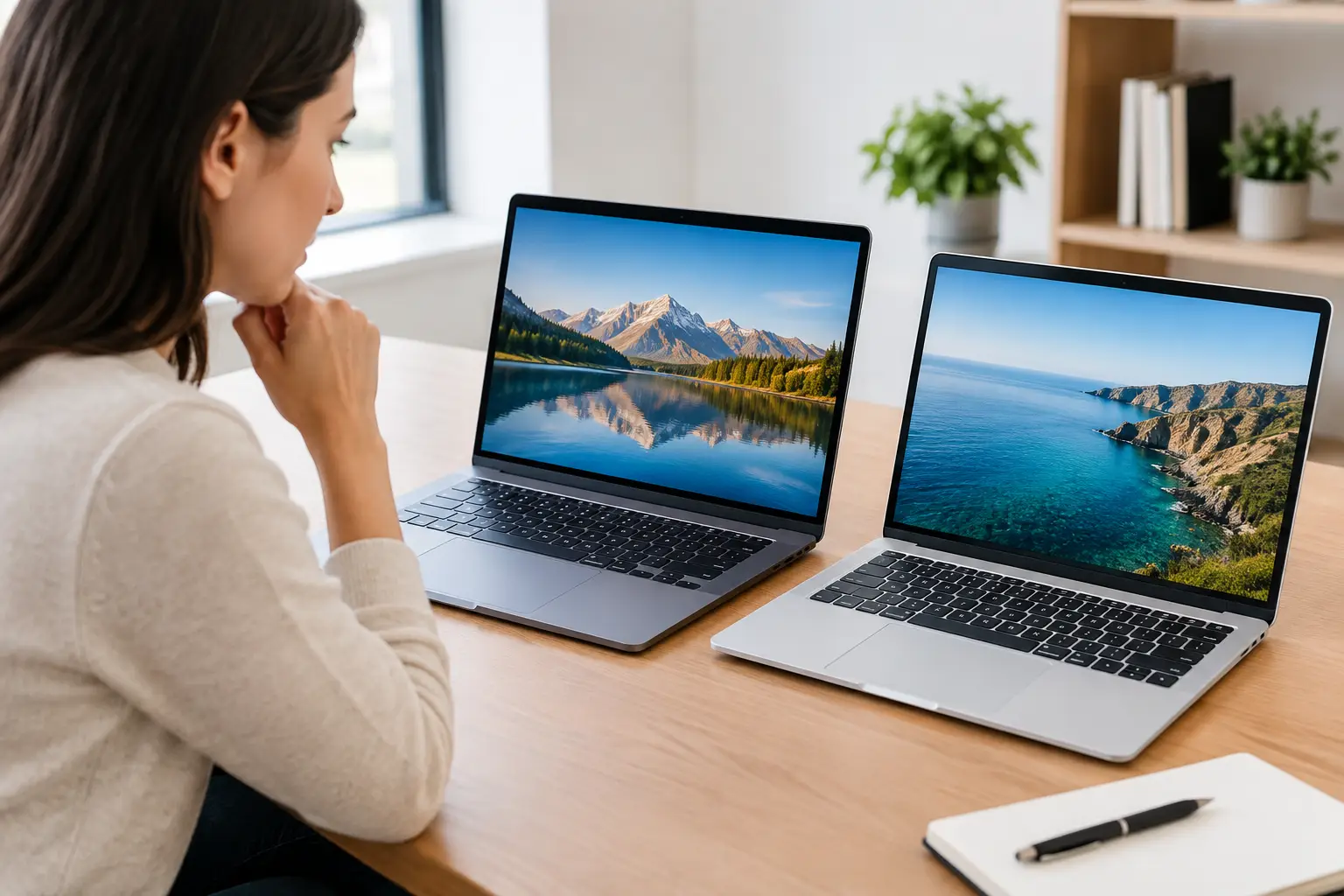
When you narrow your choices, place the key details side by side: processor, RAM, storage, display size and resolution, graphics, weight, ports, battery claim, and final price. Include taxes, shipping, and any accessory you will need. A lower sticker price is less attractive if you immediately need extra storage, a USB hub, or more memory that cannot be added later.
Pay attention to bundles too. A laptop package with a useful mouse, sleeve, software subscription, or external drive can offer genuine value, but only when those extras are items you would have bought anyway. A bundle should improve the deal, not distract from weak core specs.
Avoid the most common laptop spec traps
The first trap is paying for a processor that is far more powerful than your routine requires while accepting only 8GB of RAM or tiny storage. The second is choosing a beautiful high-resolution screen without considering battery life or graphics needs. The third is assuming “up to” battery life, “gaming” branding, or a huge discount tells you how the laptop will perform.
Another common mistake is ignoring the operating system. Make sure the laptop supports the software, games, workplace tools, or school requirements you need. A Chromebook can be a low-cost, easy option for web-first tasks, but it is not the right fit for everyone who relies on full desktop applications.
The best laptop deal is the one that feels quick, comfortable, and capable long after the sale badge disappears. Match the specs to your real routine, compare the complete configuration, and then shop the price with confidence.