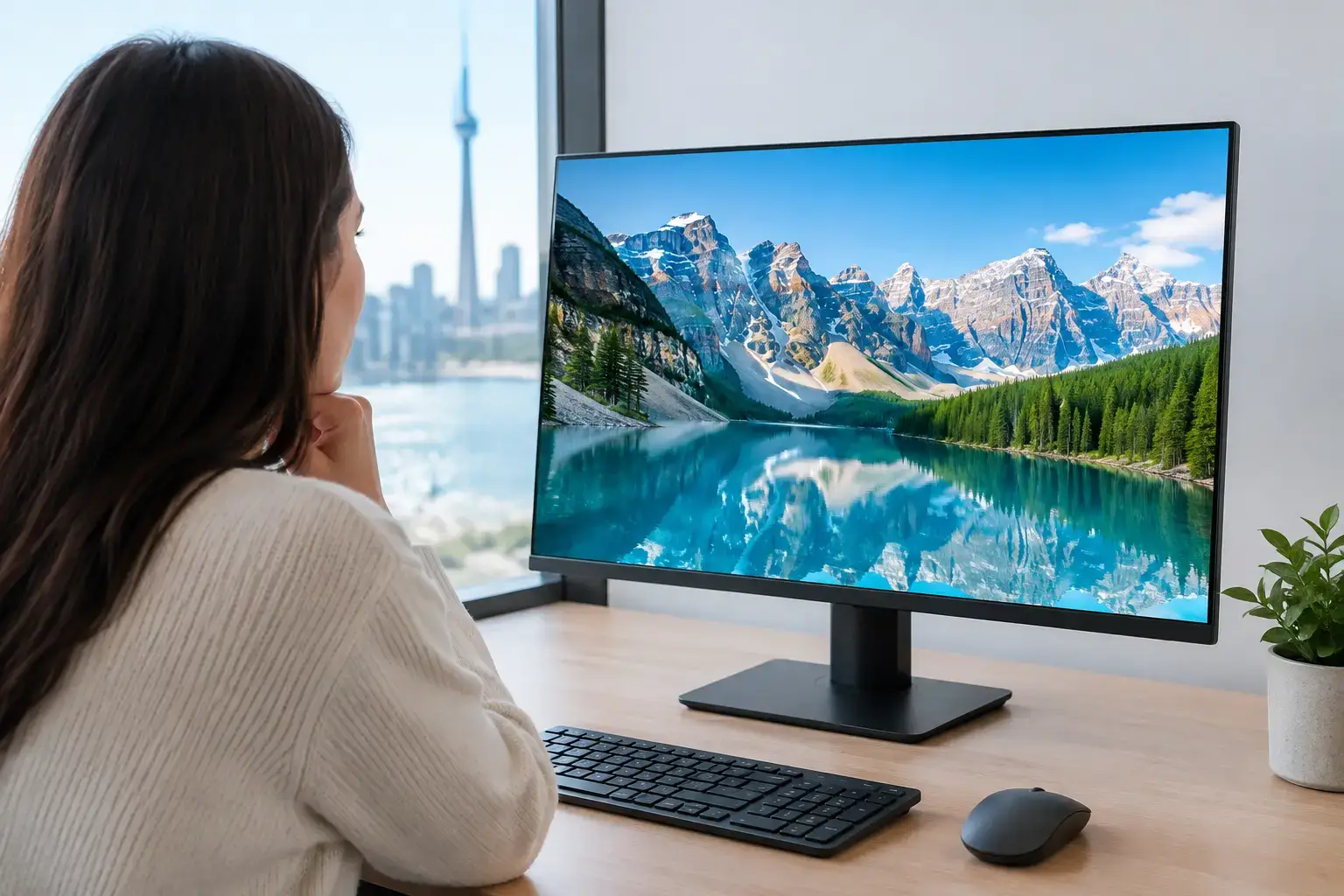
A monitor can make a budget laptop feel more capable, turn a cramped desk into a better work zone, or give a gaming console the screen it deserves. This computer monitor buying guide is built for Canadian shoppers who want a great-looking display without paying extra for features they will never use. The right choice is less about buying the biggest model on sale and more about matching the screen to your desk, devices, and daily routine.
Start with how you will use the monitor
A monitor for email, spreadsheets, online classes, and family browsing has very different priorities from one for competitive gaming or photo editing. Start with your main task, then spend where it will be noticeable.
For everyday home or office use, a 24-inch or 27-inch monitor with a 1080p or 1440p resolution is often the sweet spot. Text is clear, windows are easy to arrange, and prices are usually friendly. Students and remote workers may get more value from a larger screen or a second matching monitor than from ultra-fast gaming specs.
Gamers should put refresh rate and response time near the top of the list. A 144Hz or 165Hz display makes motion look much smoother than a standard 60Hz monitor, but only if the computer or console can deliver enough frames. For creative work, prioritize colour quality, resolution, and viewing angles. A screen that displays photos consistently matters more than an extreme refresh rate.
If one monitor needs to do everything, a 27-inch, 1440p IPS model with a 75Hz to 144Hz refresh rate is a strong all-round option. It is not automatically the cheapest choice, but it can save you from replacing a basic screen sooner than expected.
Computer monitor buying guide: choose size and resolution together
Screen size alone does not tell you how sharp a monitor will look. Resolution determines how many pixels fit into that space. More pixels create finer text and more room for documents, browser tabs, editing timelines, and game detail.
A 24-inch 1080p monitor remains a practical low-cost pick, especially for a small desk, a first workstation, or a secondary screen. At 27 inches, 1080p is still usable, but text and icons can look less crisp when you sit close. That is why 27-inch 1440p monitors are so popular: they offer a noticeable step up in clarity without the demanding graphics requirements and premium price of 4K.
A 32-inch 4K display suits shoppers who work with detailed images, edit video, view large spreadsheets, or simply want more desktop space. It also works well for console gaming and movie nights. Check your desk depth before buying. A large monitor placed too close can feel tiring, while a smaller model at the right distance may be more comfortable for long study sessions.
Ultrawide monitors replace some dual-monitor setups by providing one broad, uninterrupted workspace. They are excellent for multitasking, racing games, and editing timelines, but not every application uses the extra width well. They also take up more desk space and can cost more than two standard displays.
Panel type affects the picture you see every day
Most shoppers will encounter IPS, VA, and OLED panels. Each has a sensible place in a value-focused setup.
IPS is the easy recommendation for mixed use. It generally provides accurate-looking colours and wide viewing angles, so the image stays consistent when you shift in your chair or share the screen with someone beside you. IPS monitors are widely available at many price points, making them a dependable choice for work, school, casual gaming, and creative hobbies.
VA panels are known for stronger contrast and deeper blacks than typical IPS screens. They can be a good fit for movies, single-player games, and darker rooms. The trade-off is that fast motion can sometimes show more blur or dark smearing on lower-priced models. Reading recent buyer feedback can help separate a good deal from a screen that cuts too many corners.
OLED delivers exceptional contrast, rich colour, and very quick pixel response. It is exciting for premium gaming and entertainment, but it is not the automatic best buy for every desk. OLED monitors cost more, and static work elements such as taskbars or spreadsheets may concern users who leave the same image on screen for many hours. Consider the warranty and your usage habits before stretching the budget.
Refresh rate and response time for smoother gaming
Refresh rate, measured in hertz, tells you how often the monitor updates the image each second. A 60Hz screen refreshes 60 times per second, while a 144Hz screen refreshes 144 times. Scrolling, pointer movement, and fast games can feel more fluid at higher refresh rates.
For everyday use, 60Hz or 75Hz is enough. For gaming, 120Hz, 144Hz, 165Hz, and higher are worth considering, especially for shooters, sports titles, and racing games. Do not pay for 240Hz or 360Hz just because the number sounds impressive. Those models make the most sense for serious competitive players with a powerful PC and a game that can run at very high frame rates.
Response-time claims require a little caution. Brands may advertise extremely low numbers measured under ideal settings, while aggressive overdrive modes can create distracting bright outlines behind moving objects. Look for a monitor that performs well at its normal settings, rather than selecting only by the smallest number on the product page.
Adaptive sync support also helps games look cleaner by matching the monitor refresh rate to the graphics output. Look for compatibility with the graphics hardware you use, whether that is a gaming PC, PlayStation, Xbox, or another device. Console buyers should confirm supported resolution and refresh-rate modes before checking out.
Check ports before a great deal becomes a hassle
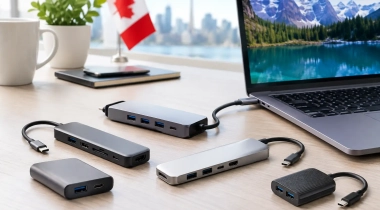
A good monitor must connect properly to your current equipment. HDMI is common on laptops, consoles, streaming devices, and desktop PCs. DisplayPort is especially common on gaming desktops and can support higher refresh rates. USB-C is convenient for newer laptops because one cable may carry video, data, and charging.
USB-C is not identical on every monitor. Some ports only handle video, while others provide enough power to charge a laptop. If you want a tidy one-cable desk setup, check the monitor’s power delivery rating against your laptop’s charging requirement. A low-wattage USB-C connection may keep a thin laptop running during light tasks but struggle under heavier workloads.
Built-in USB hubs, speakers, and webcams can be useful, but treat them as bonuses rather than reasons to compromise on the panel itself. Monitor speakers are fine for notifications, calls, or a quick video. For games, movies, and music, even affordable headphones or desktop speakers will usually sound better.
Comfort features matter more than flashy extras
The monitor is likely to be in front of you for hours, so stand adjustment deserves attention. Height adjustment makes it easier to position the top of the screen around eye level. Tilt is helpful, but a stand with height, swivel, and pivot adjustment gives more flexibility for shared desks and changing tasks.
A VESA mount pattern is another useful feature. It lets you use a monitor arm or wall mount later, which can free desk space and improve positioning. Check the VESA size and the monitor’s weight before purchasing an arm.
Curved screens are a preference, not a universal upgrade. They can feel immersive on larger ultrawide monitors, but a flat panel is often simpler for documents, design work, and multi-monitor arrangements. Similarly, blue-light settings and flicker-reduction features may improve comfort for some users, but breaks, sensible brightness, and proper screen placement still do the heavy lifting.
Spend smart and shop with confidence
The best monitor deal is not always the model with the largest discount badge. Compare the final price in Canadian dollars, the included cables, the stand features, the warranty, and whether the specifications suit your actual setup. A lower-priced monitor that needs an adapter, a better stand, or an immediate upgrade can stop being a bargain quickly.
Watch for seasonal promotions, bundle offers, and price drops on previous-generation models. Last year’s 1440p gaming monitor may offer better value than a brand-new entry-level release, particularly when the core panel, ports, and refresh rate still meet your needs. GadgetGuys can help make the browsing part quicker when you are comparing popular tech choices and current deals.
Before you buy, measure the desk, check your computer’s ports, and decide which feature you will notice every day. Choose the monitor that makes your work easier, your games smoother, or your entertainment more enjoyable, then put the savings toward the gear that completes your setup.